Workflo is a macOS menu-bar app that saves your window layouts for every display setup and restores them on its own — $15.99 (regularly $19.99) one time, with a 7-day free trial. That's the short answer this page builds up to; the honest version starts with everything else, because for some setups the free routes are enough.
One scope note first: if your problem is snapping windows into halves and corners, Rectangle or Magnet solve it and this page isn't for you. This page is about whole layouts — every window, sized and placed — surviving a monitor unplug, a reboot, or a messy afternoon.
What macOS gives you (and where it stops)
- "Close windows when quitting an application" (System Settings → Desktop & Dock — turn it off). Apps then reopen their last windows where they were. It's per-app, it only fires on quit-and-relaunch, and a display change still scrambles the result.
- Window tiling and Stage Manager arrange what's in front of you right now. Neither can name a layout, save it, or bring it back later.
- Spaces group windows, but the grouping lives in one display arrangement. Disconnect a monitor and the grouping collapses with it.
The gap is the same in every case: macOS keeps no named, restorable memory of your window layout. Everything below exists to add that memory.
The manual routes, honestly
All of these work. The thing to notice is who does the saving: in almost every case, you do.
Moom — layout snapshots on a hotkey
Moom saves a snapshot of your current arrangement and replays it from a menu or hotkey, or on its own when you add or remove a display. It's polished and reliable, and if your layout rarely changes, a snapshot you save once covers you. The snapshot is fixed, though: rearrange your work and it's stale until you re-save it.
Stay and Display Maid — the save/restore specialists
Both do exactly one job: save window positions per display configuration and put them back, from a click, a hotkey, or on their own when a display connects or disconnects. They've covered window management across multiple monitors this way for over a decade. The layout they restore is the one you last saved. How Workflo compares with both is on the Display Maid alternative page.
MacLayout and Spencer — the newer one-click savers
Same shape, newer builds: arrange, save with a name, restore with a click or shortcut. Spencer adds saving layouts across Spaces. If you want a cheap, deliberate save-and-restore button, either is a reasonable pick.
Free and scriptable: Memmon, AppleScript, Raycast
Memmon is a small open-source daemon that re-places windows on external monitors. AppleScript and Automator can set window bounds app by app. Raycast can save and apply window layouts by command. All free, all real, and all tinkerer territory: coverage is per-app, scripts break as apps update, and outside Memmon's monitor case, the restore is still something you run.
How do you make your Mac remember window positions by itself?
Everything above restores a saved layout, on a keystroke or, at best, a display change. Two pieces are missing: a layout that stays current without re-saving, and triggers beyond the display. The moments that scramble a layout are predictable: a display connects or disconnects, the Mac wakes from sleep, the workday starts. A tool watching those moments can restore the layout before you notice it broke.
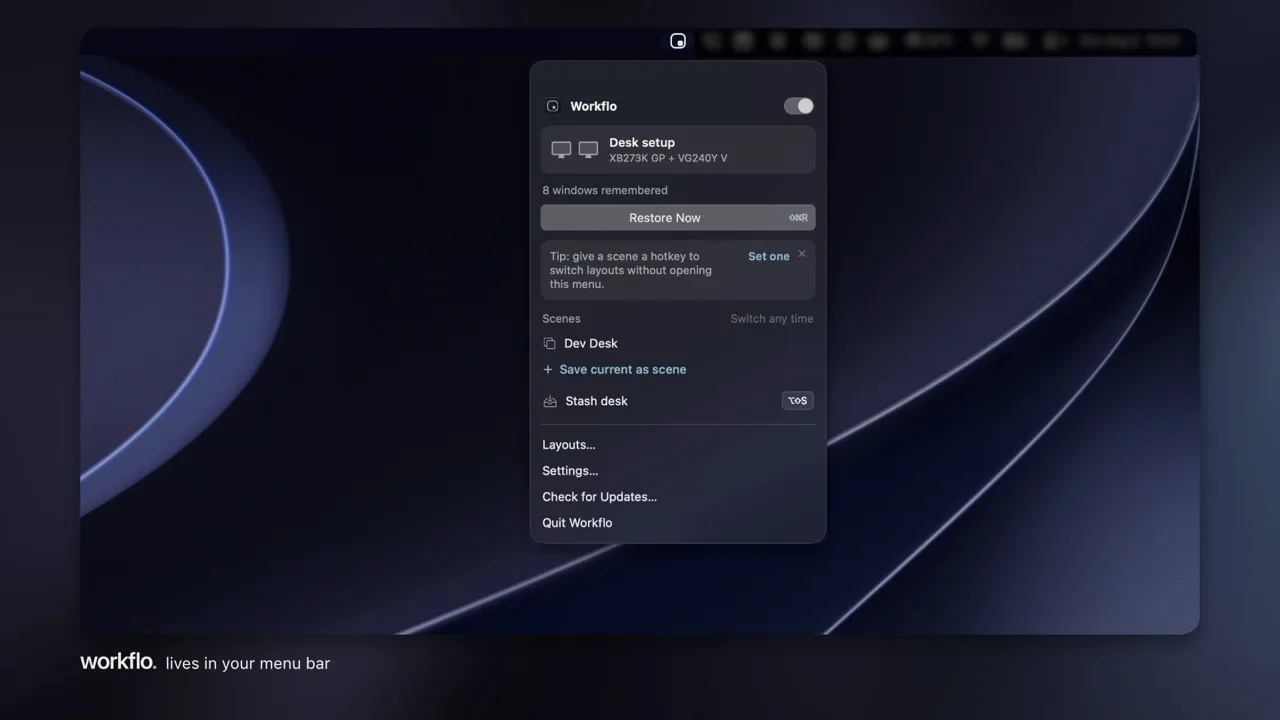
That's the job Workflo was built for. It learns your layout for every display setup on its own — it calls them Desks — and keeps learning as your arrangement evolves, so there's no snapshot to go stale and nothing to re-save. Unplug to leave, dock back, plug into a projector: everything snaps back where it belongs. It can also stage a workspace before the moment arrives — auto-arrange windows before a meeting from your calendar, or set up your morning layout at 9:00.
The Mac equivalent of "remember window locations based on monitor connection"
If you came from Windows, you may be looking for the checkbox Windows 11 keeps under Settings → System → Display → Multiple displays: "Remember window locations based on monitor connection." macOS has no equivalent setting. When a monitor disconnects, windows crowd onto the remaining display, and reconnecting it does not put them back.
Desks are that checkbox for the Mac, minus the checkbox. Workflo keeps one learned layout per display setup and restores it the moment that setup returns: dock at the desk and the office layout is back, unplug to leave and the laptop layout takes over. Nothing to save, nothing to press, and the memory stays current as your arrangement evolves.
Save vs. restore vs. auto-restore
The honest comparison, compressed.
| Snapshot apps Moom · Stay · Display Maid · MacLayout · Spencer | Scripts Memmon · AppleScript · Raycast | Workflo | |
|---|---|---|---|
| Saving the layout | By hand, again each time it changes | You write and maintain it | Learned on its own, stays current |
| Restore trigger | Your hotkey or click; Moom, Stay and Display Maid also on a display change | Your command (or a daemon's narrow event) | Display changes, calendar, the clock |
| Multi-display setups | Per-profile, if you maintain each one | If you script each one | One Desk per setup, kept automatically |
| Upkeep | Snapshots go stale | Scripts break as apps update | None — learning is the upkeep |
If a deliberate save button is all you need, the snapshot apps above are good tools and several cost less. Once the saving itself becomes the chore, because your arrangement keeps changing, or the layout should already be there before a call, the button model runs out, and that's the case Workflo exists for.