Get the foundation right in System Settings
Most multi-monitor friction traces back to three settings in System Settings → Displays:
- Arrangement. Drag the display rectangles until they match your physical desk. If the virtual arrangement is mirrored or offset from reality, every cross-monitor drag overshoots and windows land on the wrong screen after display changes.
- Primary display. Drag the menu-bar strip onto the display you actually face. New windows, dialogs, and the Dock default there — putting it on a side monitor is why new windows keep appearing where you aren't looking.
- "Displays have separate Spaces" (under Desktop & Dock → Mission Control). Leave it on: each display gets its own Spaces and menu bar, and a full-screen app takes over one display instead of blanking both. Turn it off only if you need one window to span two displays.
Moving and arranging windows between monitors
Natively, the mouse does all the work. Dragging is the only built-in way to move a window to another display, and macOS tiling (macOS 15 and later) works within a display — Fn-Control-arrows snap the active window to halves and quarters of the screen it's already on. There is still no native keyboard shortcut that throws a window to the next monitor.
That gap is what snapping tools fill. Rectangle and Magnet both add next-display shortcuts alongside their halves-and-thirds snapping, which turns a drag across three screens into a keystroke. If your layout is stable and your displays never change, a snapping tool plus the settings above may be all the system you need.
The part nothing native handles: layouts that survive display changes
The multi-monitor problem isn't really arranging — it's re-arranging. Undock to leave, and every window piles onto the laptop screen. Dock back in through a docking station, and macOS makes a best-effort attempt at restoration that sleep/wake cycles and monitor power-saving routinely defeat. The root cause: macOS keeps no memory of which layout belongs to which display setup.
Tools that save and restore layouts fix this properly — the whole field, from Moom's saved snapshots to free scripts, is compared in save & restore window layouts on Mac. Most of them share one trait: you save the snapshot, you trigger the restore. They wait to be asked.
Layouts per display setup, learned on their own
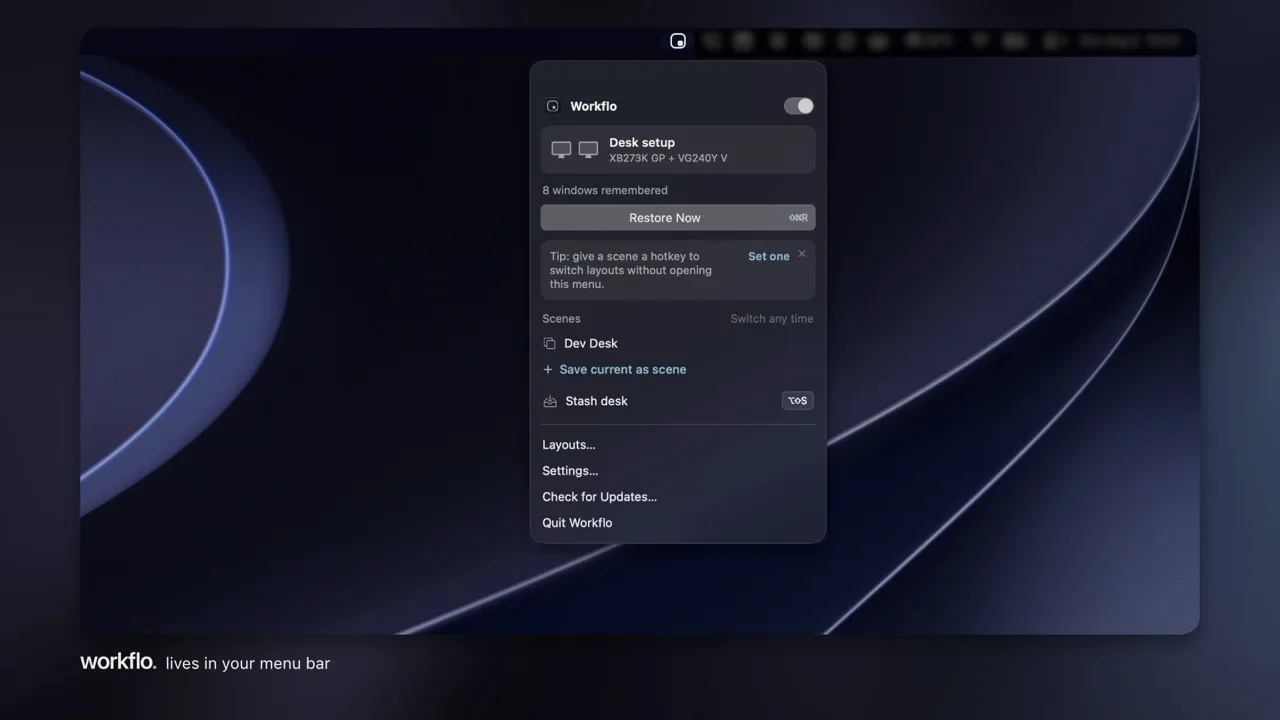
Workflo removes the asking. It learns your layout for every display setup on its own — it calls them Desks — and keeps learning as your arrangement evolves. Dock at the desk, undock to leave, plug into the projector: everything snaps back where it belongs as soon as your displays settle, with no snapshot to save and none to go stale.
The same engine works the calendar and the clock: before a call or a focus block, it stages the right apps and windows across your monitors so the workspace is set before the moment arrives. Multi-monitor management stops being a task you perform and becomes something the Mac maintains itself.