Looking for the Dock bar that jumps between screens? That's a different problem. With "Displays have separate Spaces" on, the macOS Dock moves to whichever screen your pointer pushes against at the bottom edge. Turning that setting off in System Settings → Desktop & Dock keeps it on the main display after you log out and back in, but it costs more than it fixes: every screen then shares one set of Spaces, and a full-screen app blanks your other displays. With more than one monitor, most people are better off leaving it on. How Spaces work across displays explains the trade. This page is about docking stations: the USB-C or Thunderbolt hub your monitors plug into.
Why a docking station makes it worse
Every display change makes macOS move windows, because it keeps no memory of where they belong on each setup. The single-monitor version of this problem is one change. A dock is several in a row.
- The monitors arrive one at a time. One cable brings two or three screens, and macOS sees them connect a second or two apart. Each arrival is its own rearrangement, so windows get pushed around several times before the last screen is up.
- DisplayLink screens come up last. Docks that drive extra monitors over DisplayLink need the DisplayLink Manager app running before those screens exist. After a restart or login, your windows have already settled onto the screens that were there first, usually the laptop's.
- Monitors behind a dock sleep on their own schedule. To macOS, a monitor that wakes late is a monitor being plugged in, so the shuffle can happen without touching a cable. The sleep and wake case works the same way.
- Lid open and lid closed are different setups. Opening the lid adds the built-in screen to the set, and macOS treats that as a new arrangement with its own guesses.
What helps on the macOS and dock side
- Set DisplayLink Manager to open at login, if your dock uses it. The sooner those screens exist, the fewer windows land on the laptop first.
- Pick lid open or lid closed and keep to it. Switching between the two at the same desk gives macOS two arrangements to confuse.
- Check the arrangement after docking (System Settings → Displays). Two identical monitors can swap places in the virtual arrangement, and then every window lands on the wrong one. Setting the main display there also decides where the menu bar goes.
- Update the dock's firmware and use the cable it shipped with. A flaky link drops and reconnects, and every reconnect is another shuffle.
- Wake the Mac fully before you unplug. Undocking mid-sleep produces the worst scrambles.
Identical monitors, swapped. Drag them back to match the desk.
These cut down how often it happens. None of them give macOS a memory of where your windows belong.
The fix: windows that come back when you dock
The durable fix is a tool that remembers a layout for each display setup and puts it back when the displays change. Workflo learns that layout on its own as you work, and it calls each setup a Desk. Three details matter on a dock:
- It recognises a Desk by the monitors, not the port. Each screen is identified by its maker, model and serial number, so the same monitors on a different port or a different dock are the same Desk. Two identical monitors that report no serial number still make a Desk, but Workflo may not tell those two screens apart. Lid open and lid closed are two Desks, each with its own layout.
- Undocking is covered too. Unplug the dock and the laptop screen is its own Desk, so your windows go back to where you had them there, not into one pile.
- It waits for the monitors to finish arriving. Workflo restores once the displays have stopped changing for a moment, so a dock that brings screens up one at a time gets one restore, not three.
- A late screen gets its windows back too. When a DisplayLink screen or a slow monitor appears later, that is another display change, and Workflo restores again with the full set.
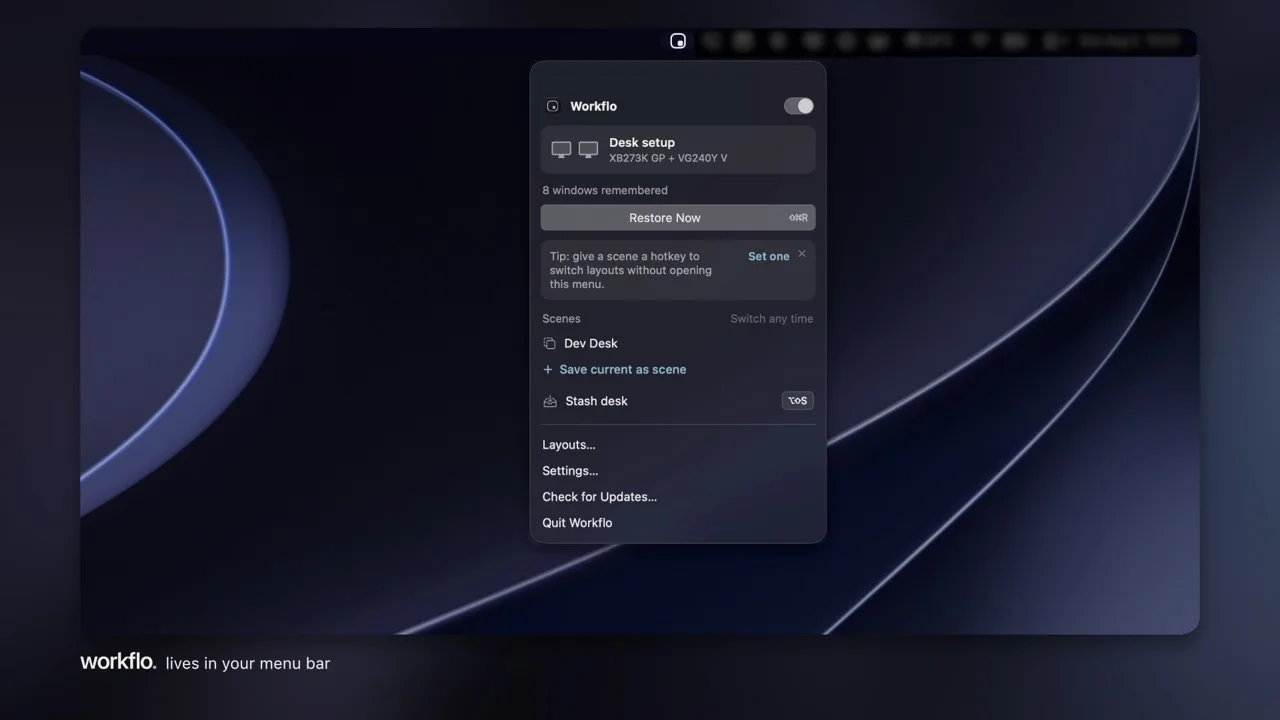
If a restore ever lands wrong, Undo last restore has its own shortcut. To compare Workflo with tools that replay a layout you save by hand, see save and restore window layouts on Mac or the full Mac window manager roundup. The same engine also sets up your windows before meetings from the calendar.