If you drag two windows to opposite sides of your screen once a day, stop reading. Apple's built-in tiling in macOS Sequoia and later already does that. Head to System Settings → Desktop & Dock, make sure "Tile by dragging windows to screen edges" is on, and go enjoy your day.
This guide is for the rest of us: people who arrange windows dozens of times a day, who dock and undock a laptop, who run calls and focus blocks back-to-back and are tired of manually rebuilding the same setup every time.
We tested eight Mac window managers in 2026, each installed and run on an M-series MacBook Pro with an external display, docking and undocking between checks. One of them stages your workspace automatically. The rest wait for you to ask. Here's how they compare.
Comparison at a glance
All eight snap and resize, handle multiple monitors, and are native macOS apps. These are the columns where they differ.
| App | Price | Best for | Auto-restore layouts | Calendar trigger |
|---|---|---|---|---|
| Rectangle | Free / Pro $9.99 | Keyboard-driven snapping | No | No |
| Magnet | $4.99 | Drag-to-snap simplicity | No | No |
| Moom | $15 | Grid-based custom layouts | Manual | No |
| Loop | Free | Elegant UI, radial menu | No | No |
| Raycast Windows | Free (with Raycast) | Already-use-Raycast crowd | No | No |
| BetterTouchTool | $15 / $25 lifetime | Total input customization | No | No |
| BetterStage | Free / Pro $19.99 one-time | Multi-project workspaces | Manual | No |
| Workflo | $19.99 one-time | Workspace automation | Automatic | Yes |
Rectangle
Rectangle is the default recommendation for a reason. It's free, open-source, and does exactly what you expect: snap windows to halves, thirds, quarters, or custom sizes with keyboard shortcuts. The free version gives you a dozen shortcuts out of the box. Rectangle Pro adds custom shortcut layouts, throw-to-snap, and quicker window sizing for $9.99.
Best for: Anyone who wants keyboard-driven window management without spending a dollar. It's the Spectacle successor and the benchmark every other tool is measured against.
What it doesn't do: Remember your layout across monitor changes. Undock your laptop and you're repositioning every window by hand. There's no concept of "this setup belongs at my desk": Rectangle just snaps what's in front of you. If that limitation is what brought you here, we wrote a deeper dive on what Rectangle doesn't do and what to use instead.
Magnet
Magnet popularized drag-to-snap on the Mac. Drag a window to an edge or corner, and it snaps into place, the same mental model as Windows Snap. Keyboard shortcuts are there too, but dragging is the primary interaction. It's the simplest tool on this list to adopt.
Best for: People coming from Windows who want the exact same snapping behavior they're used to. Also: anyone who hates memorizing keyboard shortcuts.
What it doesn't do: Multi-monitor aware layouts and automatic recovery. If your setup changes when docking, undocking, or plugging in a projector, Magnet doesn't remember where anything was. You're snapping from scratch each time. We compare it in depth in our Magnet alternative guide.
Moom
Moom is the power user's manual manager. Hover over any window's green button and a pop-up palette lets you place windows on a grid, save named layouts, and trigger custom arrangements. The grid system is more flexible than fixed snap zones: you can size windows to any proportion, not just halves and thirds.
Best for: People who want precise control over window sizes and positions, especially if you work with complex multi-window layouts that you want to save and recall manually.
What it doesn't do: Trigger automatically. You have to remember to invoke a saved layout. Moom will never fire one on its own based on your calendar or the time of day. It's also the most complex tool to set up: expect a learning curve. If saved layouts are the feature you care about, see how Moom's layouts compare to automatic Scenes.
Loop
Loop brings a fresh UI to window management: hold a hotkey and a radial menu appears around your cursor. Pick a zone, and the window flies there. It's fast, visual, and the hover-to-preview behavior means you see where the window will land before committing. It's completely free and open source (GPLv3) with no paid tier.
Best for: Visual thinkers who want to see placement options rather than remember shortcut keys. Loop's radial menu is genuinely faster than dragging once you build the muscle memory.
What it doesn't do: Multi-monitor layout persistence. Like Rectangle and Magnet, Loop manages whatever's on screen right now. It doesn't know you docked and it won't put windows back where they were.
Raycast Window Management
If you already use Raycast as your launcher, this is the zero-cost, zero-setup option. The Window Management extension gives you halves, thirds, quarters, centering, and display switching, all accessible from the same command bar you already use for everything else. It's not the most full-featured manager, but it might be the one you actually stick with.
Best for: Raycast users who want window management without installing yet another app. If Raycast is already in your muscle memory, adding window commands there is friction-free.
What it doesn't do: Saved layouts, automatic recovery, or monitor-aware behavior. It's a command-based snapper and nothing more. Also: you have to buy into the Raycast ecosystem, which not everyone wants.
BetterTouchTool
BetterTouchTool is a swiss army knife. Window snapping is one of about 50 things it does: you can also remap your trackpad, Touch Bar, keyboard, mouse, and even build custom automation sequences. Its window management covers the basics (snap left/right, maximize, center) but shines when you combine it with the other triggers BTT offers. It also includes BetterSnapTool's snapping wholesale; that pairing is compared separately. The standard license covers 2 years of updates; lifetime is $25.
Best for: People who want to customize everything about how they interact with their Mac. Window management is one piece of a much larger puzzle, and it's worth it if you'll use the other 49 features.
What it doesn't do: Focus on window management. The interface is dense and the window-specific features are buried among hundreds of options. If window management is your only concern, BTT is overkill. It also doesn't handle automatic multi-monitor recovery.
BetterStage
BetterStage is the closest competitor to what Workflo does. It offers named multi-display workspaces ("Stages") that you can switch between with keyboard shortcuts, plus Bento Box Tiling that auto-arranges windows into preset grids. It's purpose-built for people who juggle multiple projects and display setups.
Best for: People who think in terms of "projects" and want to switch between named workspace setups with a shortcut. The multi-display awareness is solid.
What it doesn't do: Automate. BetterStage requires you to invoke a Stage manually. It won't watch your calendar for an upcoming call, it won't trigger a workspace at 9 AM, and it won't restore windows when you dock. You have to tell it when to switch. (An optional AI-staging add-on is subscription-based; the core Pro license is pay-once.)
Workflo
Workflo is the only app on this list that opens your apps, arranges every window, and clears the rest on its own. The others act on the windows you already have open, and only when you ask.
It watches your calendar and clock. Ahead of a video call, it opens the apps you need, moves and resizes each window the way you set it, and clears everything else, complete with a cancelable countdown. Change your displays (dock, undock, plug in a projector) and every window returns to its exact position in under a second. No hotkey, no radial menu, no drag.
Here's what that looks like in practice:
- Your morning focus block starts at 9 AM. Workflo opens your IDE, Notion, and Terminal, arranged across two monitors, without you touching anything.
- You undock for a meeting. When you come back and plug in, Workflo puts every window back where it was. No "restore layout" button. It just happens.
- You jump from a design review call to a standup. Each has its own Scene: different apps, different layouts, triggered by different calendar events.
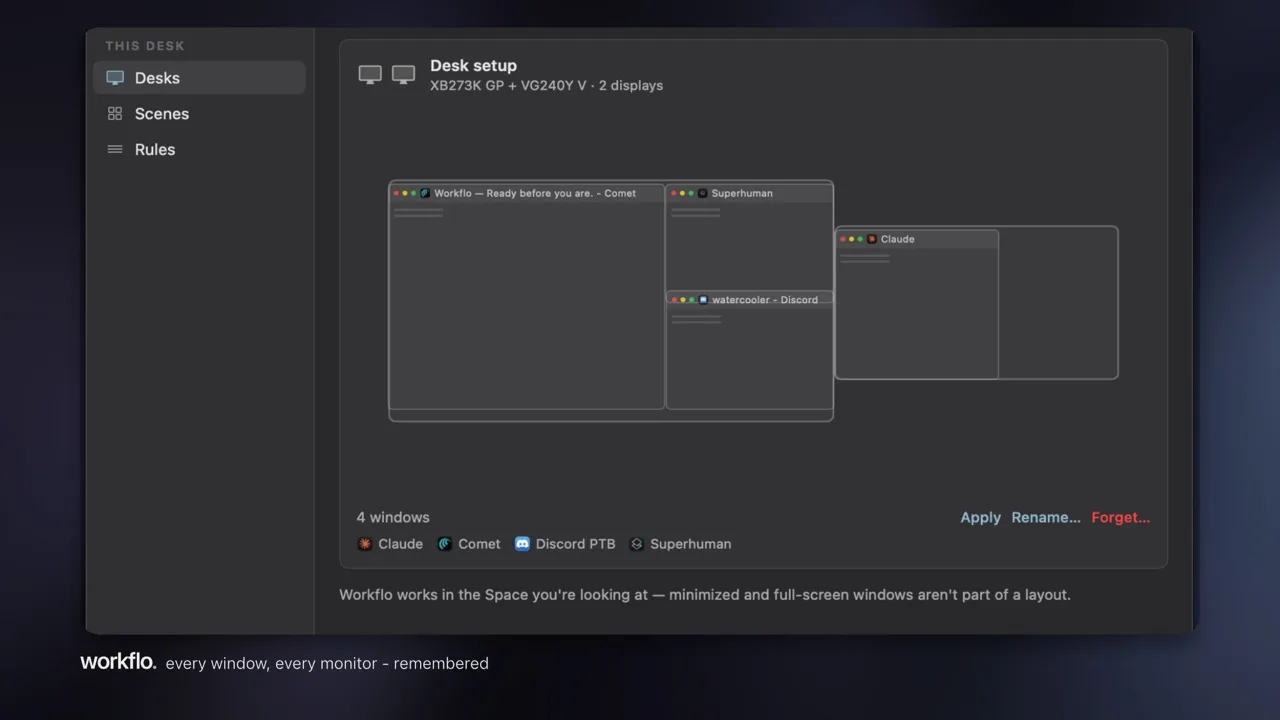
How it works:
- Scenes: A Scene opens the apps that aren't running, places every window, and clears the rest. Named per Desk, and built on a drag-and-resize canvas.
- Desks: Workflo remembers which displays are connected. When you dock or undock, it knows which Desk you're on and restores the right layout.
- Triggers: Time-based (set a fixed schedule) or calendar-based (fires before any event with a video link). A cancelable countdown gives you a veto window: automation you can always override.
Privacy: All config lives in a JSON file on your Mac. No account, no cloud, no screen recording. Accessibility permission only.
Best for: People whose day is back-to-back calls and focus blocks. If you spend more time rebuilding your workspace than doing the work, Workflo is built for you. Also: anyone who regularly switches between laptop-only and docked setups.
What it doesn't do: Be the fastest manual snapper. If what you want is "press a key, snap a window, move on," Rectangle or Magnet is a better fit. Workflo is for people who want to stop arranging windows entirely, not do it faster.
Which one should you pick?
- Pick Rectangle if: You want a free, fast keyboard snapper and don't mind repositioning windows when your display setup changes.
- Pick Magnet if: You prefer dragging windows to edges and corners over learning keyboard shortcuts.
- Pick Moom if: You want precise grid control and saved manual layouts, and don't mind a learning curve.
- Pick Loop if: You're a visual thinker and the radial menu appeals to you more than memorizing shortcuts.
- Pick Raycast Windows if: You already live in Raycast and don't want another app.
- Pick BetterTouchTool if: You want to customize every input on your Mac. Window management is just one piece.
- Pick BetterStage if: You think in project-based workspaces and want named multi-display stages you can switch between.
- Pick Workflo if: You want your workspace staged for you: before a call, before a focus block, before you even ask. If you dock and undock regularly and are tired of the manual rebuild, this is the one that works without you.
Workflo is made by Lucid Labs. We build this app because we were tired of arranging the same windows into the same positions five times a day.