The short answer: to use multiple desktops on a Mac, press F3 or Control + Up arrow to open Mission Control, then click the + at the right of the Spaces bar. Move between Desktops with Control + Left or Control + Right, and drag a window to the edge of the screen to send it to the next one.
That much is on Apple's support page. The part that is not, and the reason most people end up here, is what happens to all of it when you unplug a monitor or log out.
What a Desktop actually is
A Desktop is a Space: a separate screen's worth of windows that you switch to rather than see all at once. You get them two ways, and only one is deliberate.
- You made it. Mission Control, then the + button. Apple caps you at 16 spaces.
- An app made it. Any window sent full screen gets a Space of its own, and so does a Full Screen Tile pair. This is why people find Desktops they never created.
The second case is the source of most confusion. A full-screen app is not "on" your desktop at all, and closing the Space it lives in is a different action from quitting the app.
You made it
Mission Control, then the plus button in the Spaces bar. Up to 16, counted across every display.
It made itself
Every full-screen window takes a Space of its own. This is where the Desktops you never created come from.
Create, switch and remove a Desktop
- Create: Mission Control, then + in the Spaces bar at the top.
- Switch: Control + Left or Control + Right, or swipe left and right with three or four fingers. On current macOS these arrow shortcuts want the Globe (fn) key held as well, and they act on the display your pointer is on.
- Jump straight to one: Control + a number, once you enable those shortcuts in System Settings under Keyboard, then Keyboard Shortcuts, then Mission Control. They ship switched off.
- Move a window across: drag it to the left or right edge of the screen and hold for a moment, or drag it onto a Space thumbnail inside Mission Control.
- Remove: in Mission Control, hover the Space thumbnail and click the x. The windows on it move to the Desktop on its left rather than closing, and everything after it renumbers, so Desktop 4 becomes Desktop 3.
Telling one Desktop from another
The Spaces bar names them Desktop 1, Desktop 2 and so on, which is no help at all once you have five. Apple's own fix is a different wallpaper per Desktop, and it has a step people miss: assign System Settings to All Desktops first, then switch to each Space in turn and change the wallpaper there. Without that first step you keep dragging the System Settings window between Spaces and changing the same one twice.
Full-screen Spaces are the exception. They show the app's name rather than a number, they cannot be renamed, and they sit wherever the app put them. Mission Control is the only place you see the whole set at once, by pressing F3, Control and Up arrow together, or swiping up with three or four fingers.
Keep an app on the Desktop it belongs to
Switching by hand every morning is not a system. Pinning an app is, and macOS has had the setting for years in a place almost nobody looks: right-click the app's Dock icon, then Options, then Assign To.
- All Desktops: the app appears in every Space.
- This Desktop: the app opens only on the Space you are on now.
- None: no assignment, the default.
Three things about this setting are not documented anywhere, and we found them building against it:
- It moves windows that are already open. Choosing This Desktop does not just affect the next launch. A window sitting on another Desktop jumps to the current one straight away, with no relaunch and no flicker.
- Clearing it does not undo it. Set an app back to None and the window stays exactly where the assignment put it. The setting acts as a one-time instruction, not a leash.
- It is per app, not per window. Every window of that app lands on the same Desktop. A browser with one window on Desktop 1 and another on Desktop 2 is not something macOS can express, by this route or any other.
One related behaviour catches people out constantly. Clicking an app in the Dock when its window lives on another Desktop does not bring the window to you. It takes you to the window, switching Desktops out from under you. That is macOS working as designed, and it is the single most common reason people think Spaces are broken.
Used deliberately, the first two are a feature. Assign, let macOS do the move, clear the assignment, and you have placed a window without leaving anything pinned behind.
Desktops and external monitors
Whether each display gets its own set of Desktops is a setting: System Settings, then Desktop & Dock, then Displays have separate Spaces. On, every screen has its own Spaces bar and switching one display leaves the other alone. Off, all your displays switch together as a single Space.
The trade-off is real in both directions. With the setting on, each display keeps its own Desktops, but the menu bar follows your pointer and a full-screen app takes over only the screen it is on. With it off, your displays behave as one wide Space, which suits a matched pair of monitors and irritates anyone pairing a laptop screen with a large external one. There is more on window management across multiple monitors if that is the setup you are on.
Neither choice changes what happens when the displays themselves change, which is the next section, and the one the guides skip.
Why your Desktops scatter
macOS keeps far less of this than people assume.
- Log out and it is gone. "Reopen windows when logging back in" restores your windows but not which Space they were on. Everything comes back onto Desktop 1, and the arrangement you built is a pile.
- Unplug and it collapses. Windows on a disconnected display crowd onto the one you have left. Plugging the monitor back in does not send them home, and their Space membership does not come back with them.
- Order can shift under you. "Automatically rearrange Spaces based on most recent use" reorders your Desktops as you work, so Control + 2 is not reliably the same Desktop tomorrow. It is on by default, in Desktop & Dock.
There is no macOS setting that fixes this. Spaces are a way to arrange today's windows, not a saved arrangement you can ask for back. That gap is why saving a window layout is a separate problem from creating Desktops, and why a whole category of tools exists to close it.
Before you log out
Windows spread across three Desktops, each one holding the work it belongs to.
After you log back in
Every window returns to Desktop 1. The Desktops survive; which windows were on them does not.
If you would rather turn them off
Plenty of people arrive wanting fewer Desktops, not more. Delete the extras in Mission Control, then turn off "Automatically rearrange Spaces" so new ones stop appearing in unexpected places, and keep apps out of full screen, since full screen is what silently creates them. There is no single switch that disables Spaces outright.
The arrangement that comes back
Everything above is something you do by hand and lose on the next logout. Workflo is built for the other half: it learns your window layout for every display setup on its own, so when you dock, undock or wake the Mac, every window returns to where it belongs.
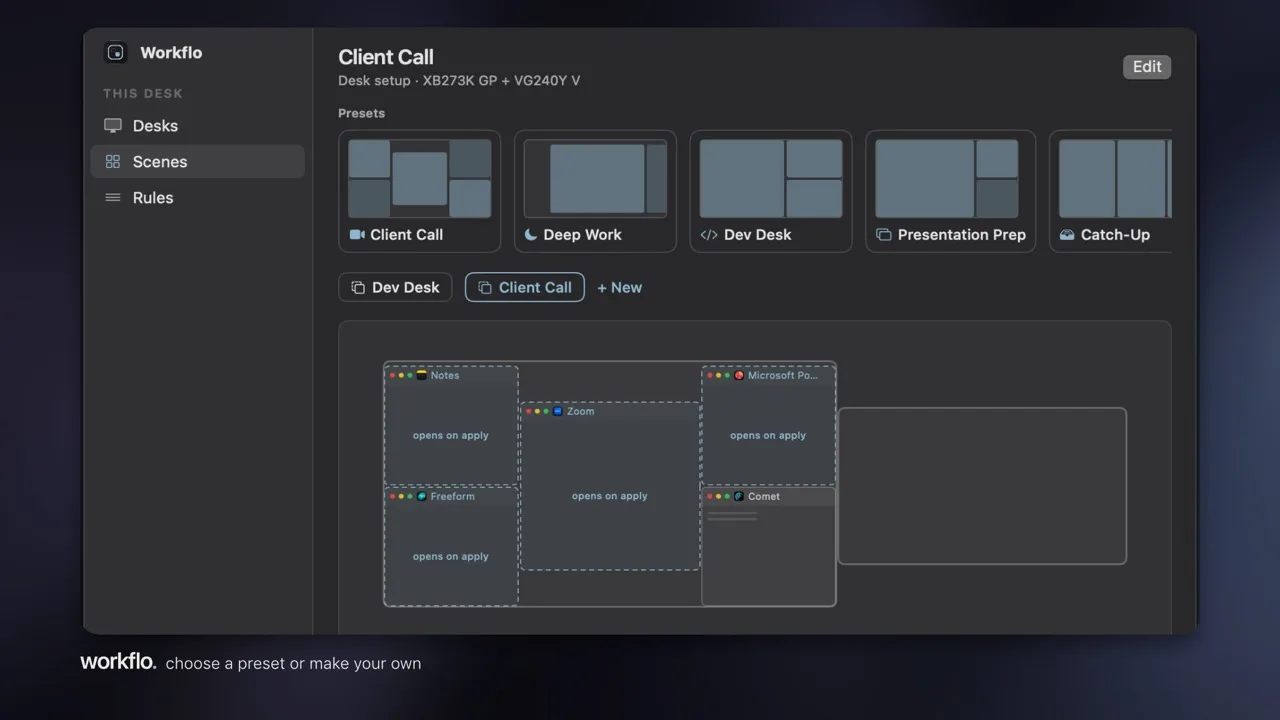
A Scene goes further than remembering. It opens the apps that are not running, places every window, and clears the rest, and it can apply on its own before a call or at the start of the workday rather than waiting to be asked. Placing a Scene's apps on specific Desktops is available too, as an Experimental setting in the direct version. Workflo runs on Accessibility permission alone and never asks for Screen Recording, so it can see where your windows are, never what is in them.
Build the arrangement once. Get it back every time.
Try Workflo free for 7 days →