What you're actually automating
The pre-meeting scramble is always the same minute: find the browser tab or call app, drag it to the right display, pull up the notes doc, hide the code editor with yesterday's work all over it. Do it four times a day and it stops being a minute — it becomes a tax on every context switch.
The manual routes, honestly
- Apple Shortcuts / AppleScript. Shortcuts can open apps on a schedule, but macOS gives it no reliable way to position and size other apps' windows — and it can't watch your calendar for the next event with a video link. You get the right apps in the wrong places, at a fixed time rather than before your actual meeting.
- Snapping tools (Rectangle, Magnet). They make the arranging faster once you start it. The noticing, deciding, and pressing are still yours, still at 10:59.
- Saved layouts (Moom). One hotkey recalls a meeting layout you saved earlier — closer, but you still have to remember to fire it, and the snapshot goes stale as your setup evolves. The full field of these tools is compared in save & restore window layouts on Mac.
The automated route: calendar-triggered layouts
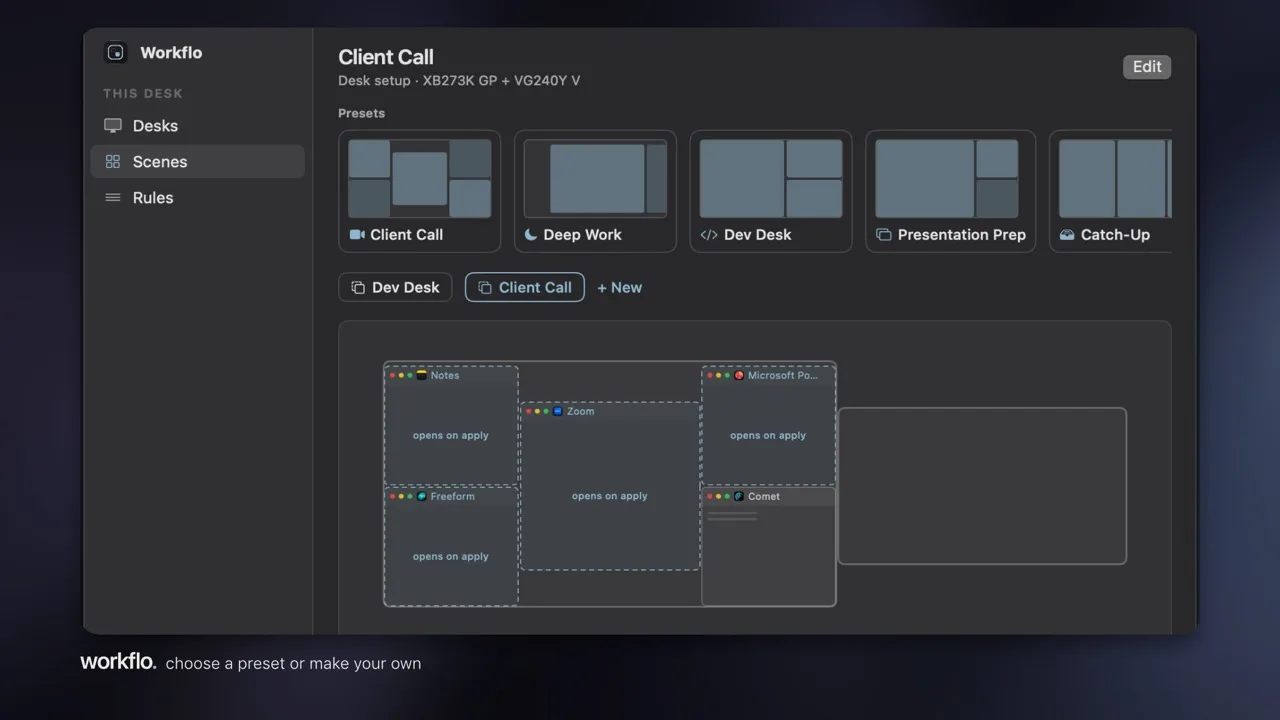
The durable version inverts the direction: instead of you reacting to the clock, a tool watches the calendar and prepares the workspace ahead of the event. That's exactly what Workflo's calendar Trigger does — when an event with a video link approaches, it applies the Scene you've assigned: the call app, notes, and agenda open and placed, everything else hidden, before the meeting starts. A cancelable countdown runs first, so an unwanted trigger never yanks your workspace away.
The same mechanism covers the rest of the day: a time Trigger stages your focus-block Scene at 9:00, and Desks put everything back when you dock or undock. Workflo isn't a faster way to arrange windows — it's the end of arranging them as a task.
Setting it up in Workflo
- Design the Scene. In Scene Studio, lay out the meeting workspace — drag ghost boxes for apps even if they aren't running; "open missing apps" launches them on apply.
- Add a calendar Trigger. Point it at your calendar; it fires for events with video links. Calendar access is only requested when you create this trigger.
- Let it run. Before each call, the Scene applies on its own. After, one hotkey brings your working layout back.